Analysis results and exports
SPARTA shows the threats it elicits for a model, together with their estimated risk, in the ThreatAnalysis view. From that view you can export the results to a CSV file or to a LaTeX report. This page describes the view and both exports in detail. For the meaning of the risk values and how SPARTA computes them, see How SPARTA computes risk.
Running an analysis
In the SPARTA perspective, the ThreatAnalysis view is located to the right of the editor area. If you closed it, reopen it through and select the view ThreatAnalysis in the category ThreatAnalysis. also restores it.
To analyze a model:
Open the DFD model in an editor: either a Data Flow Diagram or the SPARTA Model Editor (the tree editor).
Make sure that editor is the active editor. In the tree editor, select an element of the DFD model.
Click
 Load and Analyze Model in the toolbar of the ThreatAnalysis view.
SPARTA analyzes the model of the active editor only. For a diagram, this is the model file that contains the diagram’s DFD model; for the tree editor, it is the file of the selected element. If no editor is open, nothing happens. The view shows one analysis at a time: loading a model replaces the previous analysis.
What is analyzed
The analysis covers the model file itself plus every file that the model references directly. Typically these are the threat type catalogs, attacker models, data models and solution catalogs listed in the DFD model’s Resource property. A catalog or attacker model that the DFD model does not reference is ignored, even if it is in the same project.
Threats are elicited from the threat types in the referenced threat type catalogs: from their threat patterns (see Writing threat type patterns) and from the legacy key-based threat type definitions.
Risk is calculated with every attacker profile in the referenced attacker models. If there is no attacker profile at all, SPARTA uses a built-in default profile (see Defaults when information is missing).
Note
In SPARTA 2026.0, the Enabled property and threat specifications have no effect on threats from threat patterns, neither on the threat type nor on its groups: every threat type with threat patterns in scope is used. Enabled is also ignored for attacker profiles: every attacker profile in scope is used. They only affect the legacy key-based threat types.
If the PatternSupport view is open, Load and Analyze Model also lists the threat patterns that could not be parsed in that view, so you can see why a threat type produces no threats (see SPARTA Interface).
The ThreatAnalysis view
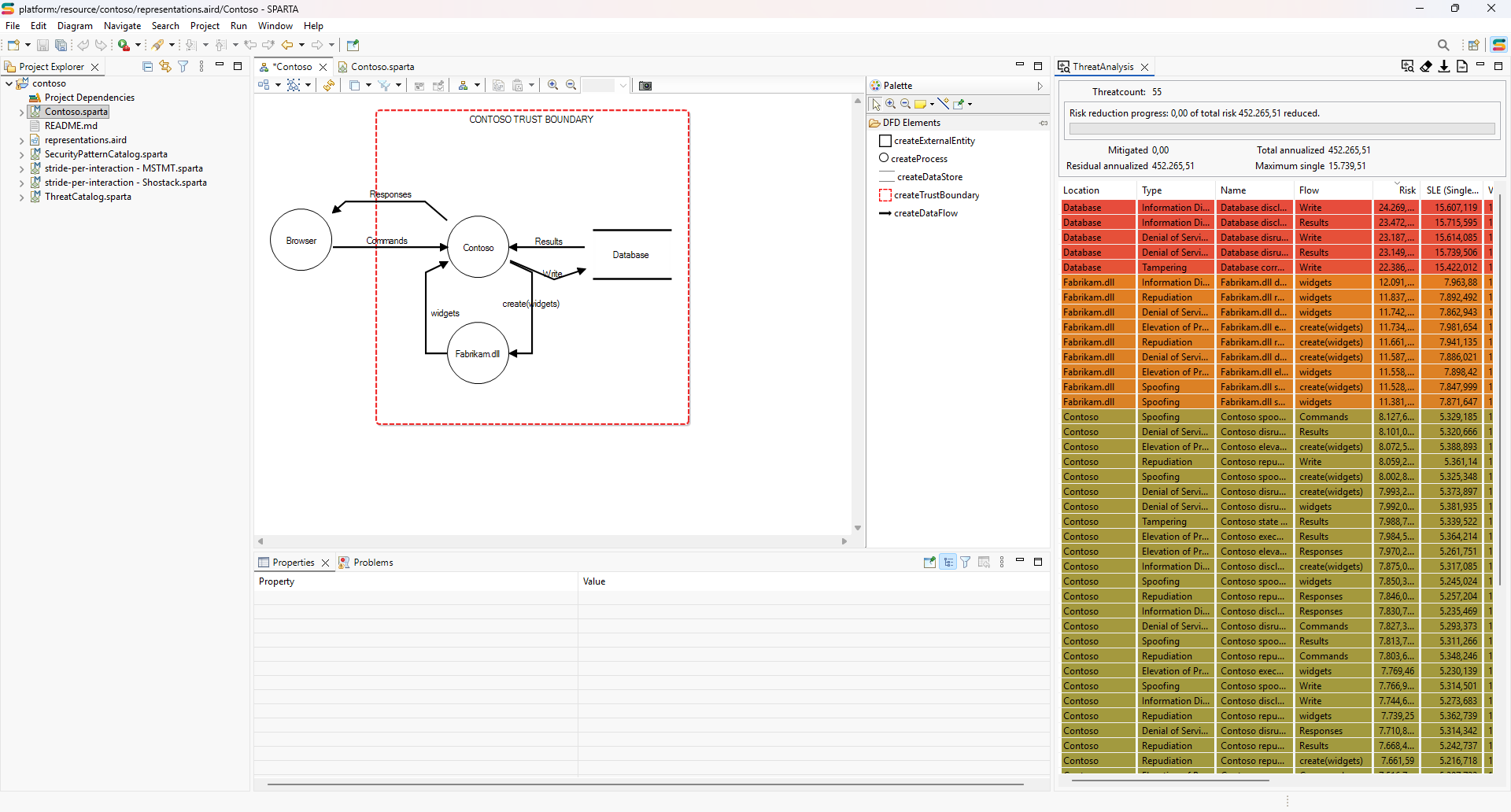
The ThreatAnalysis view (right) with the analysis results of an example model.
The view consists of a toolbar, a summary header and the threat table.
Toolbar
The view toolbar contains four buttons. Their labels appear as tooltips.
- Load and Analyze Model
Analyzes the model of the active editor (see Running an analysis).
 Clear Engine
Discards the current analysis (see Clearing the analysis).
 CSV Export
Writes all threats to
threats.csv(see Exporting threats to CSV). Report Export
Writes a LaTeX threat analysis report (see Exporting a LaTeX report).
The view has no context menu and no view menu.
Risk summary header
The header above the table summarizes all listed threats.
- Threatcount:
The number of threats (rows) in the table.
- Risk reduction progress:
The sentence “X of total risk Y reduced.”, where X is the mitigated annualized risk and Y the total annualized risk below, with a progress bar that shows X relative to Y.
- Mitigated annualized risk:
Total risk minus residual risk: the risk that the applied solutions remove.
- Total annualized risk:
The sum of the potential risk of all threats: the risk if no countermeasure applied to any threat.
- Residual annualized risk:
The sum of the risk of all threats, taking the countermeasures of the applied solutions into account (the sum of the Risk column).
- Maximum single loss event:
The largest value in the SLE (Single Loss Event) column.
Threat table
The table contains one row per elicited threat. Its columns, from left to right:
- Location
The name of the threatened DFD element.
- Type
The name of the top-level threat type group that contains the threat type (or the threat type’s own name if it is not in a group), with placeholders replaced, for example
SpoofingorTamperingin a STRIDE catalog, orLinkingin a LINDDUN catalog.- Name
The name of the threat type, with its placeholders (such as
<$location$>) replaced by the names of the matched model elements. For example,<$location$> SpoofedbecomesWeb App Spoofed.- Flow
The name of the data flow where the threat occurs. It is empty for threats whose pattern has no data flow, such as the patterns of a STRIDE-per-element catalog.
- Risk
The expected residual risk per year, taking applicable countermeasures into account, in the unit of your loss estimates (for example EUR).
- SLE (Single Loss Event)
The expected loss of a single loss event (the median of the sampled loss magnitude), in the unit of your loss estimates.
- Vulnerability
The probability, between 0 and 1, that an attack succeeds against the applicable countermeasures. It is
1when no countermeasure applies.- LEF (Loss Event Frequency)
The expected number of loss events per year.
- Description
The description of the threat pattern, with its placeholders replaced, or
Description missing.if the pattern has none.
When several attacker profiles apply, or the threatened element processes personal data, a threat’s risk consists of several components (see How SPARTA computes risk). Risk and SLE (Single Loss Event) are the sum over these components; Vulnerability and LEF (Loss Event Frequency) are averages. The lower and upper bounds of the risk are not shown in the table; the CSV export contains them.
Row colors
Each row has a background color that reflects the threat’s Risk relative to the largest potential risk among all listed threats: green for a risk of 0, orange for half of the largest potential risk, and red for the largest potential risk, with gradual transitions in between. Because the scale is based on potential risk rather than residual risk, a threat whose risk is fully mitigated turns green.
Sorting and arranging columns
Click a column header to sort the table by that column. Successive clicks on the same header sort ascending, then descending, and then restore the original order. The numeric columns sort by value, not by the displayed text; the text columns sort alphabetically (case-sensitive).
Note
Each Load and Analyze Model gives slightly different risk values, because SPARTA draws new random samples for every analysis (see How SPARTA computes risk). Threats with similar risk can therefore swap places in a sorted table.
You can drag the headers of all columns except Location to reorder the columns. The sort order and column order only affect the view; the exports do not use them.
Threat details
Double-click a row to open a dialog titled <Name> threat with details about the threat.
If the threat pattern has a description, the dialog shows:
Type: <Type>
Threat: <Name>
Description: <description>
Risk: <Risk>
Vulnerability: <Vulnerability>
Single Loss Event: <SLE>

Info: <long description>
Clearing the analysis
Clear Engine discards the current analysis and empties the table.
The summary header is not reset: it keeps showing the values of the cleared analysis until you load a model again.
After clearing, there are no results to export.
When results are updated
After Load and Analyze Model, the threat list follows your edits to the DFD model: when you add, remove or reconnect elements and flows, in the diagram or in the tree editor, matching threats appear in or disappear from the table.
Caution
In SPARTA 2026.0, the risk values of a threat are computed only once, when the threat first appears.
Changes that do not add or remove threats are not reflected in the Risk, SLE (Single Loss Event), Vulnerability and LEF (Loss Event Frequency) columns or in the summary header.
This includes applying a solution, binding a role, changing a countermeasure’s difficulty, and changing an estimate or an attacker profile.
Changes to the threat types or threat patterns of a catalog, and catalogs or attacker models that you add to the Resource property after Load and Analyze Model, are also not picked up until you click Load and Analyze Model again.
Click Load and Analyze Model again to recompute all threats, before you compare results or export them.
Exporting results
The ThreatAnalysis view offers two exports: a CSV file with all threats, and a LaTeX report. Both exports work the same way:
They export all threats of the current analysis, so click Load and Analyze Model first. If no model has been analyzed yet, or after Clear Engine, both exports fail and write nothing.
They write into the project that contains the analyzed model, without asking for a location, and replace earlier output (except
report.texandintroduction.tex, see Generated files).They export the risk values as displayed, which may be stale after model edits (see When results are updated).
SPARTA does not refresh the workspace after an export. If the exported files do not appear in the Project Explorer, select the project and press F5 (or right-click it and select Refresh).
Warning
In SPARTA 2026.0, both exports fail for threats without a data flow, that is, threats elicited by patterns that only have a location, such as those of the STRIDE-per-element catalog.
The CSV export stops at the first such threat and leaves an incomplete threats.csv; the report export leaves an incomplete threatcatalog.tex.
The command-line tools also fail on models with such threats.
The command-line tool sparta-cli can export analysis results in further formats, such as XLSX, per-threat text files and threat statistics.
It does not produce the LaTeX report. See Command-line tools.
Exporting threats to CSV
Click CSV Export to write all threats to the file threats.csv in the root folder of the project that contains the analyzed model, also when the model is in a subfolder.
An existing threats.csv is overwritten without confirmation.
The file has the following format:
The first line is a header with the column names; then follows one line per threat, in the order in which SPARTA found the threats (not the order of the table).
Fields are separated by semicolons (
;), and every field, including the header names, is enclosed in double quotes. Double quotes inside a value are not escaped, so names that contain"corrupt the file.Numbers use the number format of your system locale, with thousands grouping and up to four decimals, for example
12,345.6789in an English (United States) locale or12.345,6789in a Belgian Dutch locale.The SPARTA product writes the file in UTF-8 without a byte order mark, with the line endings of your operating system.
The columns, in order:
Column |
Content |
|---|---|
|
The top-level threat type group (or the threat type itself if it is not in a group), as in the Type column of the view. |
|
The threat type name with placeholders replaced, as in the Name column. |
|
The name of the threatened DFD element. |
|
The name of the sender of the data flow. |
|
The name of the data flow. |
|
The name of the recipient of the data flow. |
|
The expected vulnerability, between 0 and 1. |
|
The expected residual risk, as in the Risk column. |
|
The lower bound of the residual risk. |
|
The upper bound of the residual risk. |
|
The expected potential risk: the risk if no countermeasure applied. |
For example, in an English (United States) locale (illustrative values):
"Type";"Name";"Location";"Flow From";"Data Flow";"Flow To";"Vulnerability";"Risk";"Risk (lower)";"Risk (upper)";"Risk (potential)"
"Information Disclosure";"Data flow login is sniffed";"login";"Browser";"login";"Web App";"1";"12,345.6789";"1,002.5";"98,765.4321";"12,345.6789"
When you open the file in a spreadsheet application, choose the semicolon as separator and a locale that matches the number format.
Exporting a LaTeX report
Click Report Export to generate a threat analysis report as LaTeX sources.
SPARTA writes the files into the folder report in the root of the project that contains the analyzed model and creates that folder if needed.
You then complete the report and compile it with LaTeX yourself.
Generated files
SPARTA writes the following files to the folder report:
report.texThe main document: title page, table of contents, and the chapters below.
introduction.texThe chapter “Introduction”, with placeholder text for you to replace.
description.texThe chapter “System description”.
threatcatalog.texThe chapter “Threat catalog” with all threats.
tufte-book-local.texPackage loading, styles and title page layout for the document class.
SPARTA.pngThe SPARTA logo for the title page.
tikz/dfdstyle.tex,tikz/flow_template.tex,tikz/styles.texTikZ styles for the threat diagrams.
On a later export, SPARTA regenerates all files except report.tex and introduction.tex.
Once these two exist, SPARTA never overwrites them: it writes the fresh templates to report-empty.tex and introduction-empty.tex instead, and overwrites those on every later export.
You can therefore edit report.tex and introduction.tex and export again later without losing your changes.
To start again from the templates, delete report.tex or introduction.tex before exporting.
Do not edit description.tex, threatcatalog.tex or the support files: the next export overwrites them.
Report structure
The report uses the tufte-book document class on A4 paper and contains:
a title page with the title “Threat Analysis Report”, the SPARTA logo and the publisher line “SPARTA Threat Modeling Tool”;
a page with the SPARTA website URL and “Version 1” with the month and year of compilation;
the table of contents;
the chapter “Introduction” (
introduction.tex);the chapter “System description” (
description.tex), which contains only the chapter heading in SPARTA 2026.0;the chapter “Threat catalog” (
threatcatalog.tex).
The threat catalog has one section per top-level threat type group (the Type column), in the order in which the groups first occur in the analysis. Each section has one subsection per threat, sorted by descending risk. A threat’s subsection contains:
a small diagram of the data flow, from sender to recipient, with the threatened element (or the arrow, if the threat is located at the flow) drawn in red;
a description list with “Type”, “Summary” (the threat description), “DFD Elements” (the sender, data flow and recipient), “Affected element” (the threatened element) and “Risk” (the expected residual risk, unrounded, for example
1234.567891234; large or very small values appear in Java’s scientific notation, for example1.2345E7).
Completing the report
Before you compile the report for others, edit the following:
In
report.tex, set\title{...}.\author{Author Name}is a placeholder; the title page does not print the author.In
introduction.tex, replace the line “TODO: provide a short description of the threat model.”. The introduction also refers tosec:model,sec:goalsandsec:threats, which no generated file defines, so these references appear as “??”. Remove or adjust these sentences.Add your own system description, for example to
introduction.texor to a file of your own that you include fromreport.tex, becausedescription.texis regenerated empty on every export.
Compiling the report
Compile report.tex in the report folder with pdfLaTeX, and run it twice so that the table of contents and cross-references are resolved:
cd report
pdflatex report.tex
pdflatex report.tex
XeLaTeX (xelatex report.tex) works as well. LuaLaTeX does not: it stops at the title page with the error Argument of \MakeTextUppercase has an extra }.
The report needs the following LaTeX packages, all of which are part of a full TeX Live installation:
the
tufte-latexbundle, which provides thetufte-bookclass (it loadstufte-book-local.texautomatically);FiraSans,tikz,booktabs,graphicx,fancyvrb,xspace,mdframed,enumitem,multirow,adjustbox,cleveref,pdfprivacyandifxetex;fontspec, when you compile with XeLaTeX.
The warnings about the undefined references sec:model, sec:goals and sec:threats are expected until you edit introduction.tex.
Known limitations in 2026.0
The Enabled property and threat specifications have no effect on threats from threat patterns, and Enabled is ignored for attacker profiles (see What is analyzed).
The risk values of a threat are computed only once, when the threat first appears: click Load and Analyze Model again after changes (see When results are updated).
Clear Engine does not reset the summary header (see Clearing the analysis).
Load and Analyze Model and Clear Engine log one error “An error occurred while setting the value.” (
UnsupportedOperationException) in the Error Log for each threat of the previous analysis. These errors are harmless.Both exports fail when no model has been analyzed yet, and after Clear Engine (see Exporting results).
Both exports fail for threats without a data flow, such as those of the STRIDE-per-element catalog (see Exporting results).
In the LaTeX report, the labels of the threat subsections are derived from the threatened element, so several threats on the same element cause “multiply defined” label warnings.
In the LaTeX report, special LaTeX characters (such as
_,&,%or#) are not escaped in the section titles (threat type group names) and in the “Affected element” entries. If these names contain such characters, the report does not compile until you fixthreatcatalog.texby hand (and the fix is lost on the next export).