SPARTA Interface
The screenshot below shows the four main areas of the SPARTA interface:
The Project Manager
The Graphical Modeler
The Properties View
The Analysis Results
Project Manager
All the modeling and analyses in SPARTA happen in the context of a concrete project. Before any activity is started, a project first will need to be created.
Creating a Project
In order to start creating a model, first a modeling project needs to be created. Use the menu to create a new modeling project (File > New > Project > Sirius > Modeling Project). The creation of the modeling project will also create a file representations.aird which contains the graphical views of the models that can be created in the next step.
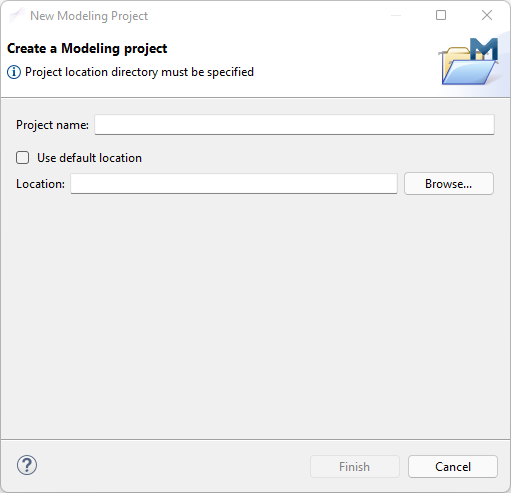
Creating a new modeling project
Creating new sparta model file
A model is created in a sparta-file. Before any modeling activity can be performed, such a file must first be created. A single modeling project can contain as many sparta-files as needed. While it is possible to link multiple sparta-files together to create larger models, this is not necessary so a sparta-file can also be used for a fully self-contained DFD.
A new sparta-file can be created via the file-menu (File > New > Other > SPARTA Model). This will launch a wizard, in which the filename can be chosen and the Model Object. The model object is the main element of the sparta-file that contains all the other model elements. While you can create separate files for every element, the most convenient element is the DFD Model element so that you can create all the model elements in a single sparta-file.
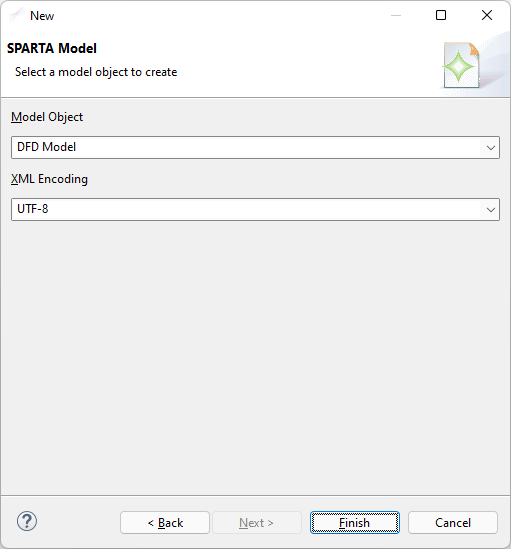
Creating a new model
Graphical Modeler
The graphical modeler in SPARTA is based on eclipse Sirius. Before being able to graphically model a DFD, a new view must be created from a DFD model. Right-click the DFD model created in the previous step to create a new DFD Model view. After that, the view is opened in the graphical modeler. The right-hand side of the modeler contains a pane with the DFD elements that can be used to create the model.
Properties View
When an element is selected in the graphical modeler (or the sparta tree view), the properties of that element are displayed in the properties view and they can be manually modified.
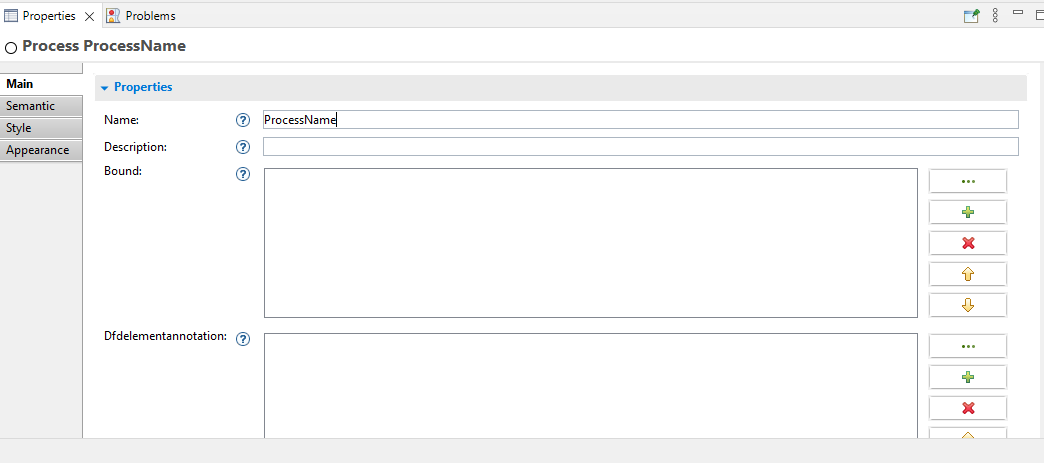
Modifying an element’s properties in the graphical model editor.

Modifying an element’s properties in the tree model editor.
Analysis View
After constructing a model it can be automatically analyzed with SPARTA to elicit Security or Privacy threats. Click the green run button in the analysis view and SPARTA will automatically elicit threats for the opened model. If the analysis view is hidden, it can be revealed through Window > Show View > Other > ThreatAnalysis. The analysis results are kept up to date as the model is further modified.